
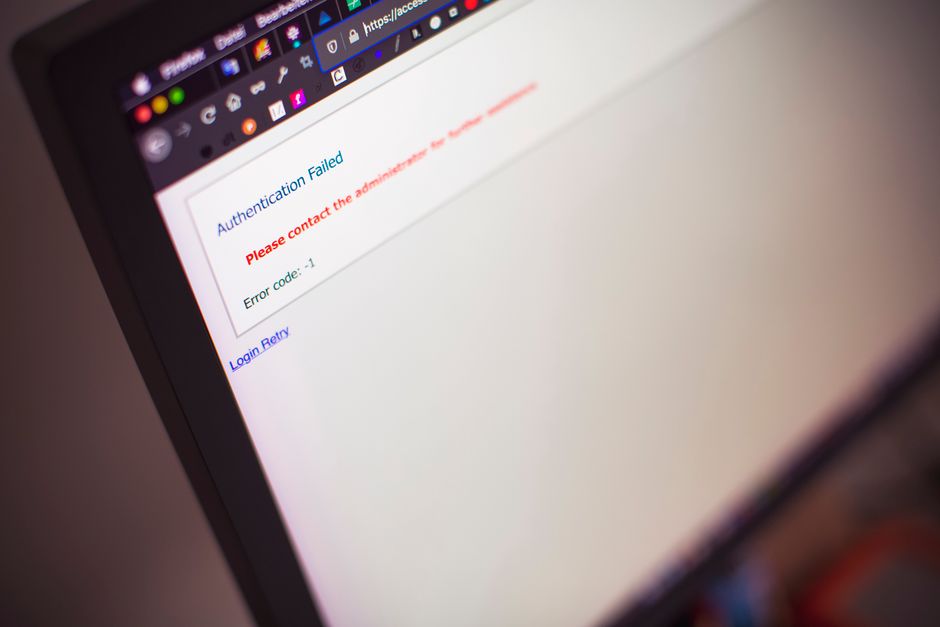
Why Your WordPress Login Page Is a Target
Your login page is the front door of your website. Automated bots scan the internet for WordPress installations and head straight for wp-login.php. A small business owner may not notice anything wrong until an unfamiliar administrator appears in the user list or customer data is exposed. Attackers do not need to know your business personally. They only need one weak password or one open door.
Mistake One: Leaving the Default Login Address
Imagine a local bakery that built its site on WordPress. The login page lives at yourdomain.com/wp-admin, which is the same address used by millions of sites. Bots can find it in seconds and start guessing credentials. Changing the login URL is not a complete shield, but it removes your site from the easiest automated scans.
The trade off is convenience. If you change the login address and do not record it, you can lock yourself out. Some security plugins can rename the login path, while others hide it behind a verification step. Pick a method you can document and share with your developer so you are not stranded during an emergency.
Mistake Two: Weak or Shared Admin Passwords
A common scenario involves two employees sharing one administrator password because it feels easier than managing separate accounts. When one person leaves the business, the password often stays the same. Attackers rely on this habit. They use lists of common passwords and leaked credentials from other sites to try logging in.
Require a unique password for every user. Avoid the default admin username. A password manager makes this manageable for a small team. If you suspect a password has been exposed, change it immediately rather than waiting for a scheduled review. Long passphrases are often easier to remember than short complex strings and harder for bots to crack.
Mistake Three: Allowing Unlimited Login Attempts
By default, WordPress lets someone try passwords as many times as they want. A bot can run through thousands of combinations without slowing down. This is how brute force attacks succeed on otherwise quiet business sites.
Limit failed login attempts per IP address. After a set number of failures, temporarily block that address or require a CAPTCHA challenge. This does not stop every attacker, but it raises the effort enough to discourage automated scripts. Review lockout logs regularly so legitimate customers or staff are not caught in a blocklist by mistake.
Mistake Four: Skipping Two Factor Authentication
Passwords can be stolen through phishing emails or malware on a staff computer. Two factor authentication adds a second step, such as a code from an authentication app. Even if an attacker guesses the password, they cannot enter without the second factor.
Enable two factor authentication for every administrator account. App based codes are generally more reliable than SMS codes, which can be intercepted. The downside is added friction for staff. Roll it out to admins first, then expand to editors and other roles once the team is comfortable. Keep backup codes in a secure place in case someone loses access to their phone.
Mistake Five: Giving Everyone Admin Access
A small business often gives every contributor full administrator rights because it is quicker than setting up roles. A web designer who only needs to update pages does not need the ability to install plugins or delete users. The more admin accounts exist, the more targets an attacker has.
Use the principle of least privilege. Assign editor, author, or contributor roles based on actual tasks. If you run a WooCommerce store, give customer service staff the shop manager role rather than full administrator access. Review the user list every few months and remove accounts for people who no longer work with you.
Mistake Six: Revealing Too Much in Login Errors
When a login fails, WordPress can tell an attacker whether the username was correct but the password was wrong. That information helps attackers narrow down valid usernames before focusing on passwords.
Replace specific error messages with a generic notice such as invalid login credentials. This small change removes a useful clue from the attacker’s playbook without confusing real users. A security plugin or a small code snippet can handle this change.
The Role of Your Hosting Environment
Your host can block malicious traffic before it reaches WordPress. Some providers include a web application firewall that scans login requests for known attack patterns. Others offer server level restrictions on the admin area. Ask your host what login protections are already active. Do not assume your plan includes them.
Shared hosting means your site shares resources with others. If a neighboring site is compromised, attackers may probe nearby IP addresses. A dedicated or managed WordPress plan often provides tighter isolation. Weigh the cost against the sensitivity of the data you store.
A Practical Login Hardening Checklist
You do not need to implement every measure at once. Start with the items that address your biggest risks and add more over time.
- Change or hide the default WordPress login URL.
- Require strong, unique passwords for all user accounts.
- Remove the default admin username if it still exists.
- Limit failed login attempts and review blocklists.
- Enable two factor authentication for administrator accounts.
- Assign user roles based on actual responsibilities.
- Use generic error messages for failed logins.
- Force HTTPS for the login page and admin area.
- Keep WordPress core, themes, and plugins updated.
- Monitor login logs for unusual activity.
Security Versus Usability Trade Offs
Every security control adds a step for someone. A custom login URL can be forgotten by staff. Two factor authentication can slow down a busy workday. Strict lockout rules can block a legitimate customer who mistyped a password several times.
Balance protection with access. Apply the strictest rules to administrator accounts, where the damage would be greatest. For customer logins on an ecommerce site, prioritize a smooth experience while still enforcing strong passwords and monitoring for suspicious behavior.
When to Bring In a Developer
Many login hardening steps can be handled through settings and plugins. Some situations need custom code. A multisite network, a heavily customized theme, or integration with a third party login system may require developer review before changes are made. If you are unsure how a security plugin interacts with your checkout process, test it on a staging site first or ask a developer before you activate it on your live store.
Conclusion
Login security is not a one time setup. It is an ongoing habit of reviewing who can enter, how they prove their identity, and what they can do once inside. Pick one item from the checklist and implement it this week. Small improvements compound into a much harder target for attackers.